Up and Down to move, Enter to open. Searches every page, tip, table and command.
GuideGet startedGetting started
Install Warchest, log in, and learn the Home tab. About five minutes, then everything runs on its own.
Unzip and put the Warchest folder in the Forever client's AddOns folder. Use the folder the Battle.net launcher created, usually called _forever_beta_ (some report _classic_beta_). Nothing else to download: LibStub and LibDeflate are bundled.
World of Warcraft\_forever_beta_\Interface\AddOns\WarchestThe window opens on its Home tab. Its Getting started card ticks itself off as you play. Afterwards open Warchest with the bag icon on the minimap, or type /wc.
Open your bank, a mailbox and each profession window once. Warchest can only read what the game shows it, so this is how your bank, mail and recipes get shared and become searchable.
The guild setup page walks you through ranks, chat history, raid nights, bank characters, vault tabs, stock alerts, the repair budget and a welcome note, then gives you one code: type /wc setup in game and paste it. Or do it in game: Guild > Setup has the same checklist. Until then everyone can use Warchest and only the Guild Master has officer tools. See Officers.
Options > Keybindings > AddOns > Warchest: toggle the window, Call for help, Kill-on-sight target and Rally / I'm coming. Worth doing before your first trip into a contested zone.
Alts link to their main on their own, your role follows your specialization, and sharing starts by itself. If you never open Settings, Warchest still works.
It's also in the add-on compartment (puzzle piece) menu, and Titan Panel, ElvUI and Bazooka get a launcher.
Home answers "what should I do?" without reading anything else. Click a numbered marker, or a line in the list, to see what each part does.
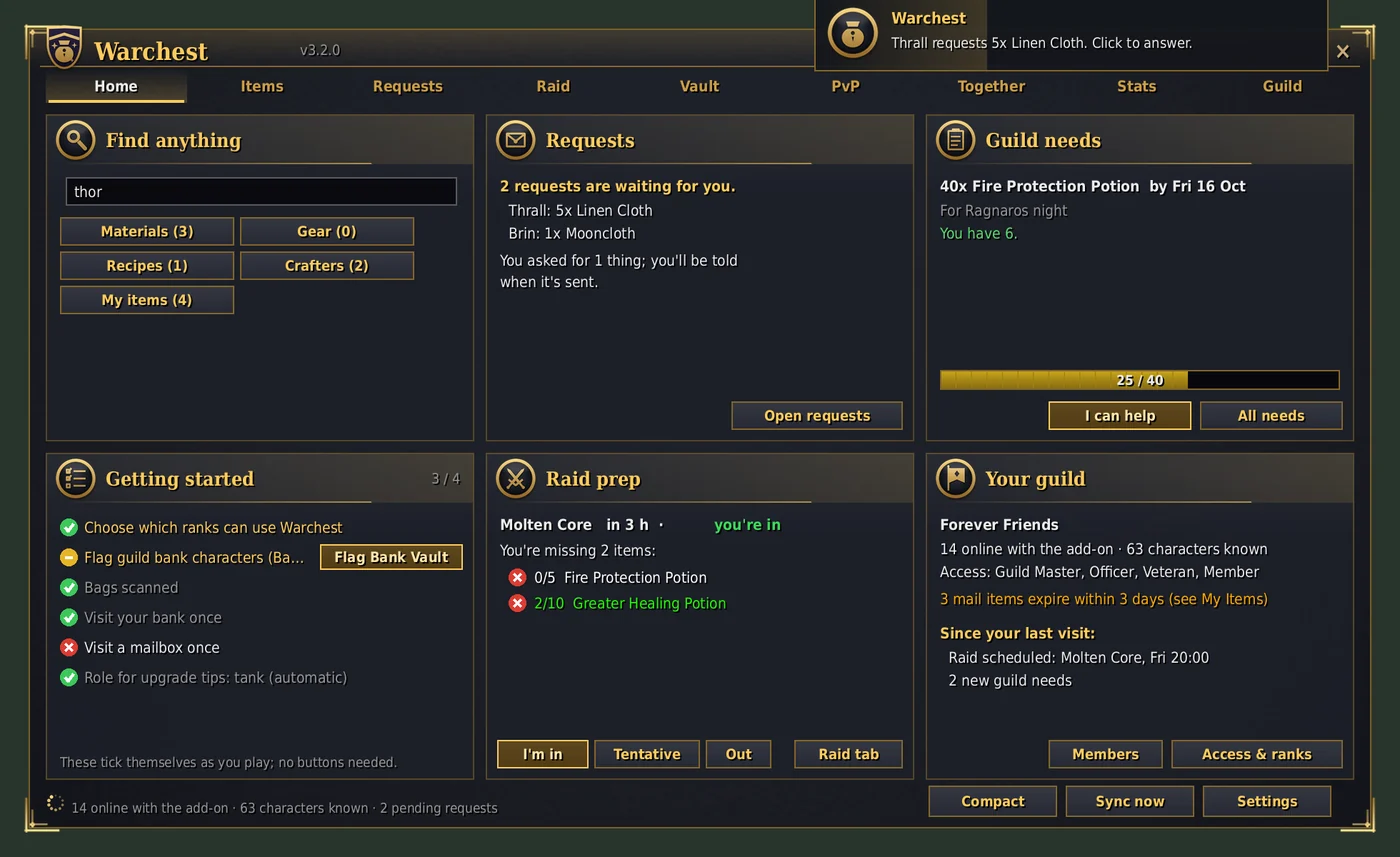
Nine tabs: Home, Items, Requests, Raid, Vault, PvP, Together, Stats and Guild. A tab with several pages shows them on the row underneath (Items: Materials, Gear, Recipes, Crafting, Wishlist, My Items, Characters) and reopens the page you used last. Type in the search box to filter a page.
Every tab has a ? that explains that tab in plain words. When something looks unfamiliar, start there.
Drag the corner to resize, or press Compact. The window closes when combat starts and comes back after; that's a setting if you'd rather keep it.
